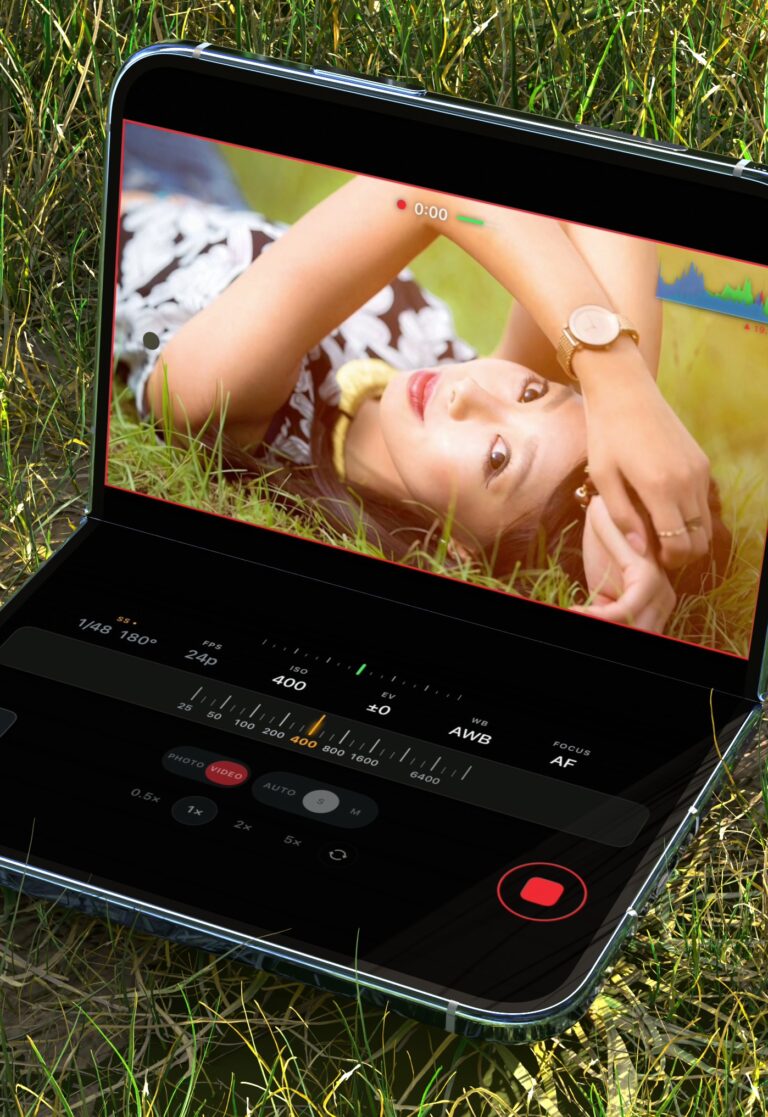
ShotCamPro is a manual camera for professionals who want to set ISO, shutter speed, white balance and focus themselves. On iPhone Duo, the picture and the controls rearrange themselves depending on whether the phone is closed, open, or half open on a table. It was made by arcion Inc., a creative production company in Fukuyama, Hiroshima, Japan, for use on our own shoots.
- ShotCamPro is a manual camera for professionals who set their own exposure. Every setting lives on a single dial, so your finger stays in the same place whichever value you choose.
- On iPhone Duo, the layout changes with each shape: closed, open, half open, and flipped around. Press Camera Control while the phone is locked and it opens with the lens, mode and values you used last.
- 13 color filters, called films. The shutter stays where it is while you choose one, and RAW files are saved exactly as shot.
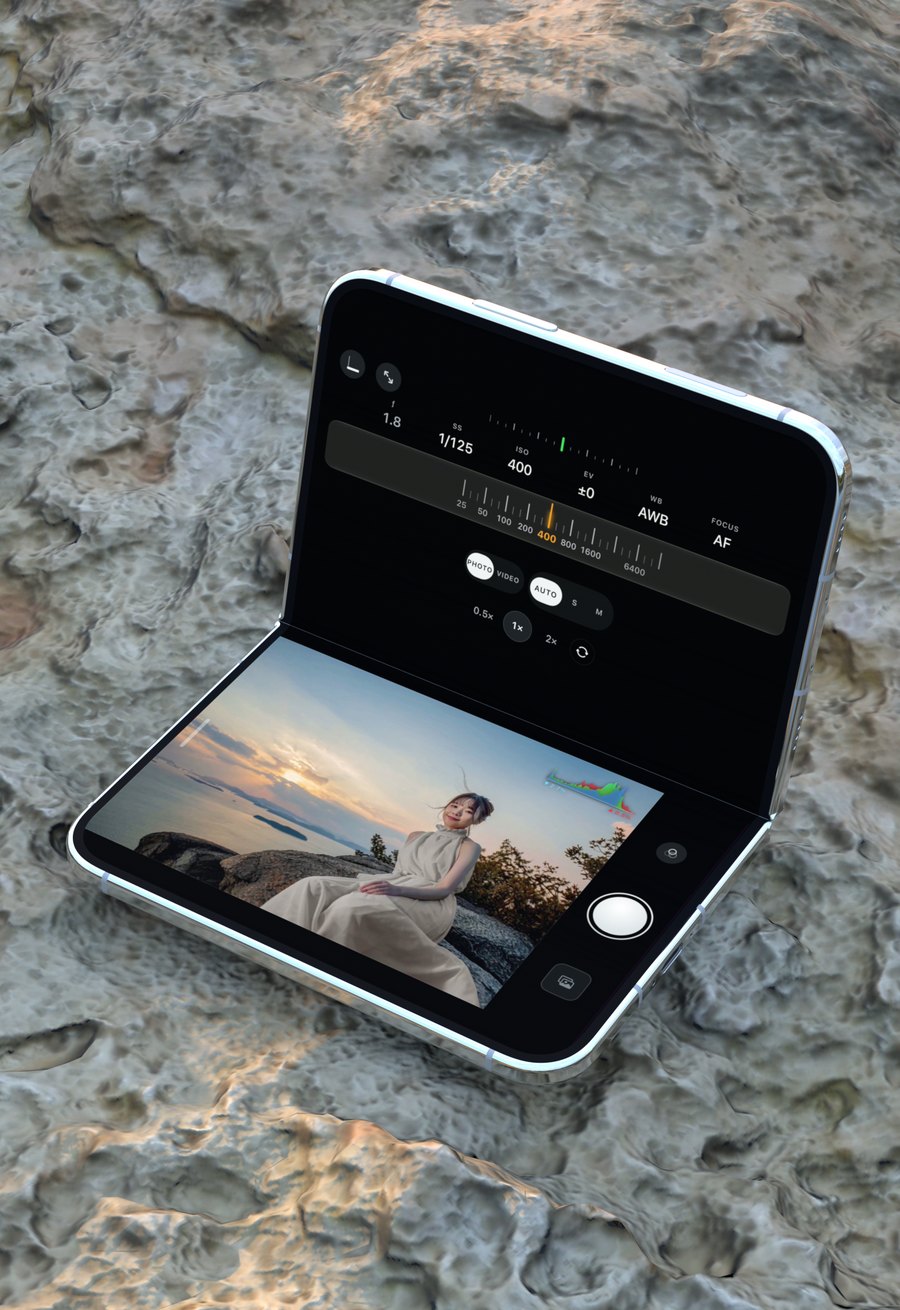
- Version 1.6 adds a waist-level finder. With iPhone Duo half open, the picture moves to the flat half, so you can hold it at waist height and look down into it.
- For iPhone and iPad (iOS 26 or later). A one-time purchase ($9.99 on the US App Store).
- One dial instead of a row of sliders
- A layout for every shape of iPhone Duo
- Shoot while locked, and let your subject see themselves
- What we decided for 2×, video and saving
- The shutter stays put while you choose a film
- The film presets
- Shooting from the waist with the waist-level finder
- Why a production company makes apps
- Summary
- FAQ
One dial instead of a row of sliders
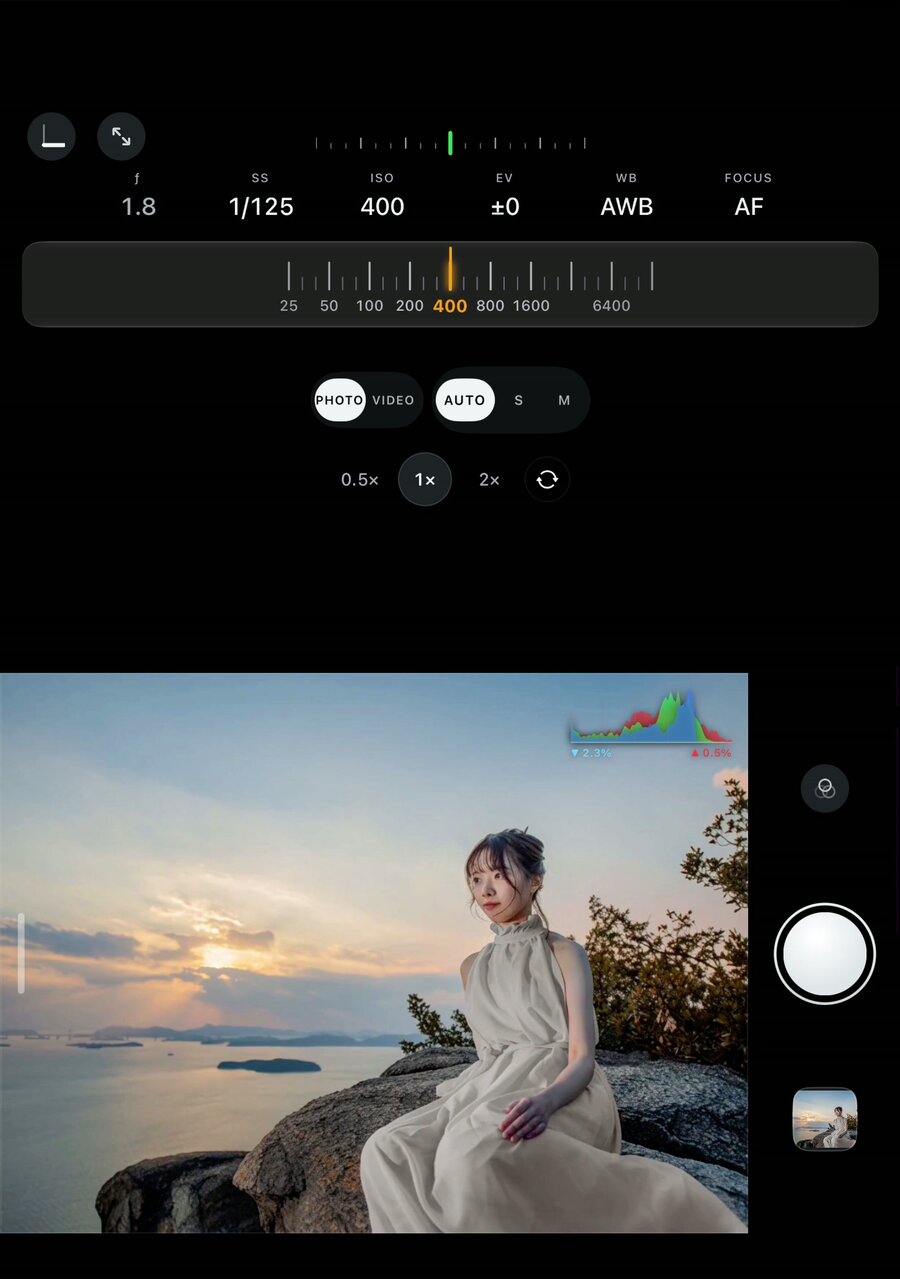
ShotCamPro has no sliders. ISO, shutter speed, exposure compensation, white balance and focus all live on a single dial. Whichever one you choose, your finger stays in the same place, and you feel a click at every third of a stop. The point is to change values by feel, without searching the screen for the control.
There are three modes: AUTO, S (shutter priority) and M (manual). Move the shutter speed while in AUTO and you switch to S; move ISO and you switch to M.
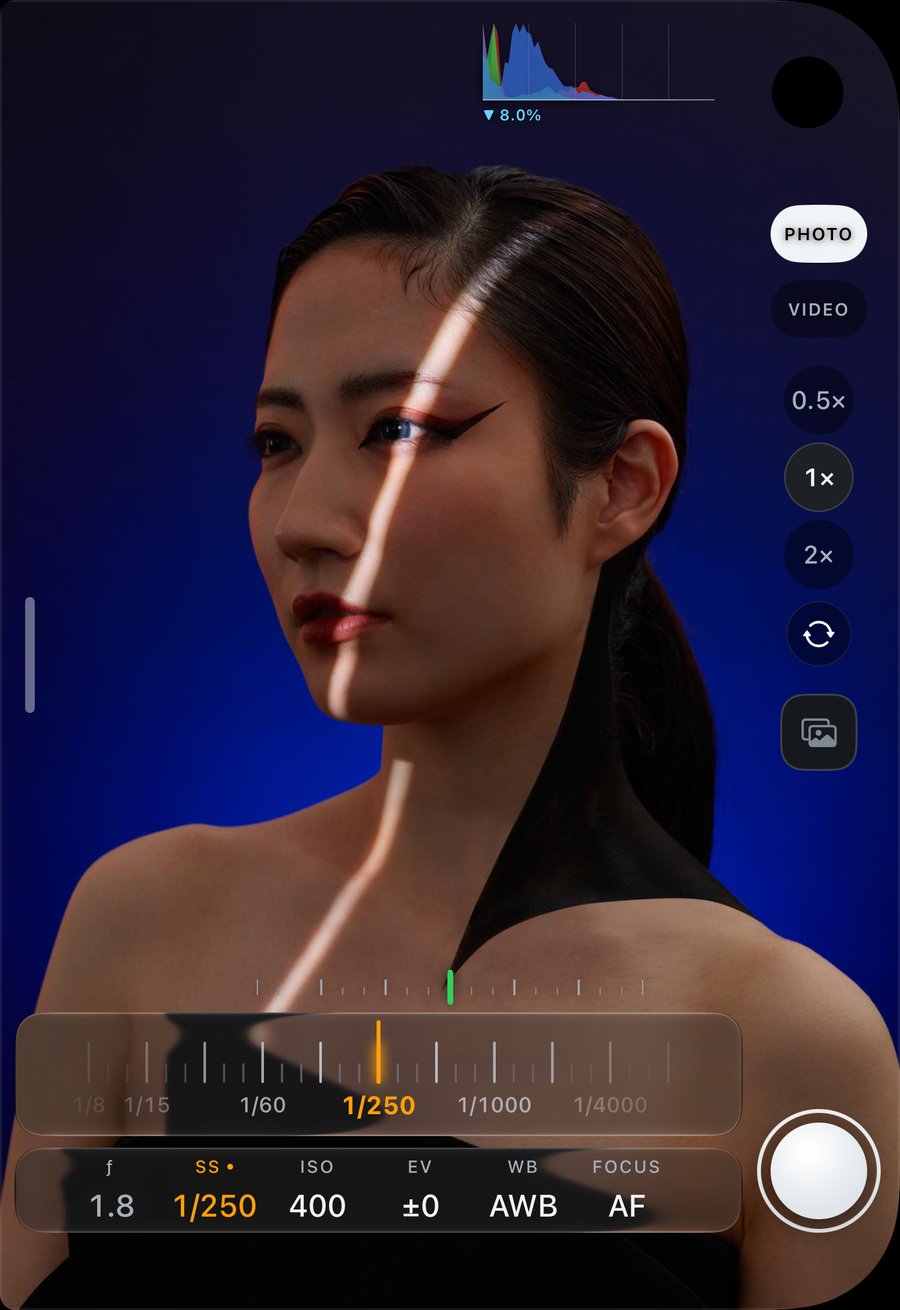
Using it ourselves, we found that values near the edge of the screen left too little room to drag. With a shutter speed toward the left end, your finger reaches the edge of the screen after about five ticks. We compared five possible fixes and chose this one: while your finger is held at the edge, the value keeps advancing. Move your finger back or lift it, and it stops.
There is no aperture control. On iPhone, the aperture is fixed for each lens, and no app can change it. Rather than make something look adjustable when it isn’t, ShotCamPro shows each lens’s actual ƒ-number when you select that lens.
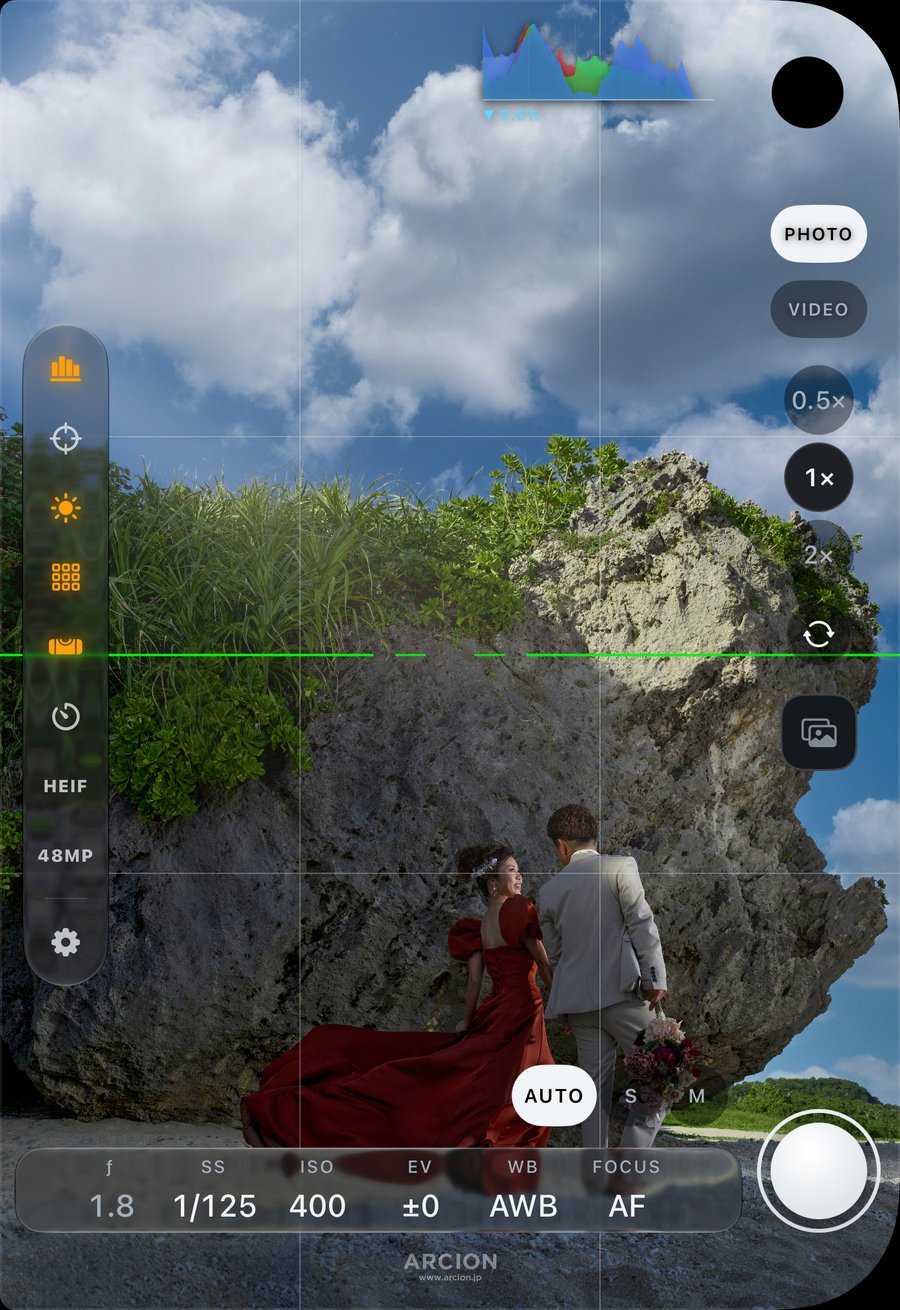
A layout for every shape of iPhone Duo
iPhone Duo can be closed, open, half open, or open and flipped around, and each shape changes how you hold it and which screens you can see. ShotCamPro moves the picture and the controls to suit each one.
| Shape | Where the picture and controls go |
|---|---|
| Closed | The picture fills the cover screen; the controls sit in a strip along the right edge |
| Open, held sideways | Laid out like the back of a camera: picture on the left, controls on the right |
| Open, held upright | Picture on top, controls below |
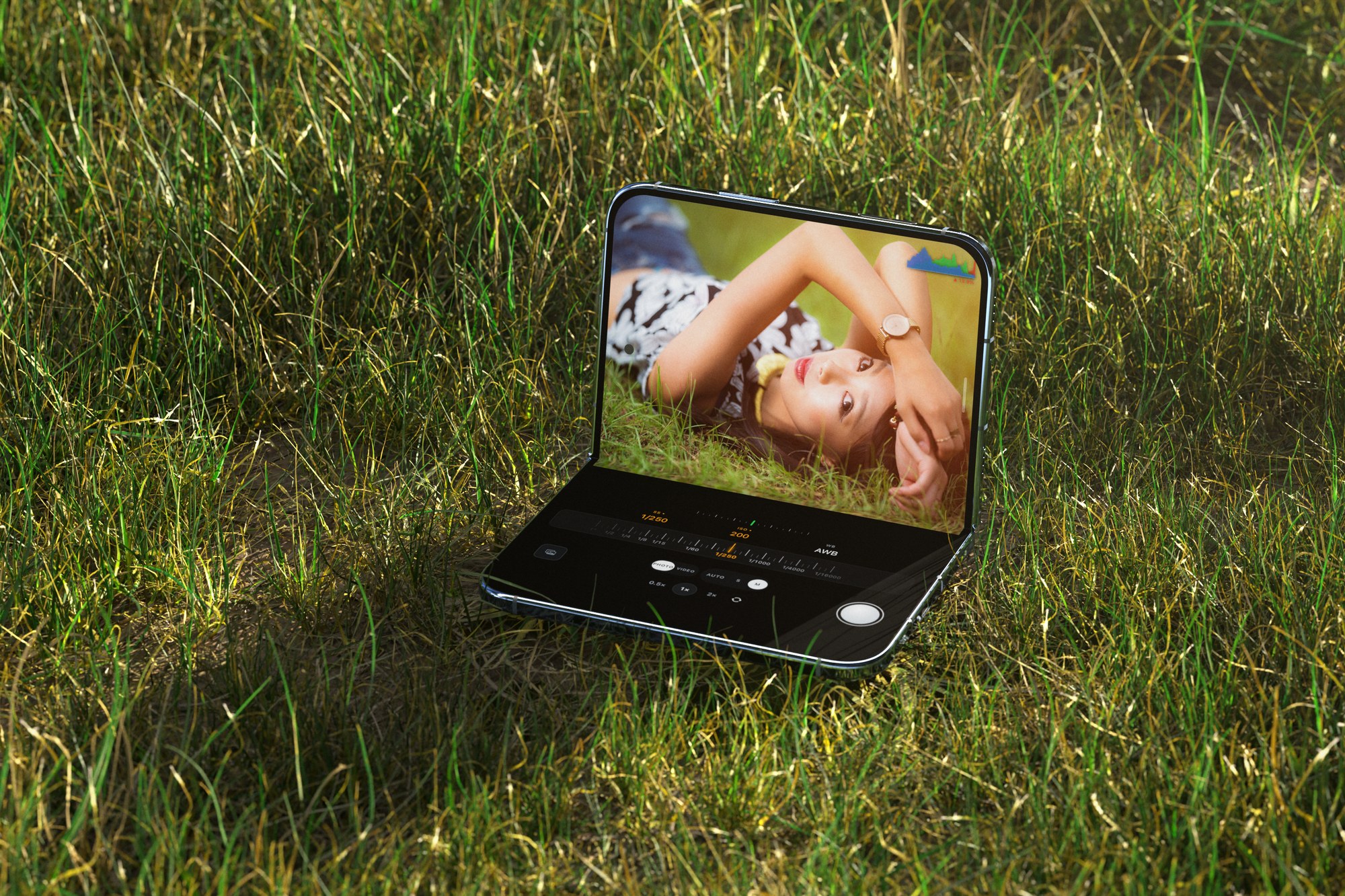
| Half open on a table | Picture on the upright half, all the controls on the flat half |
| Half open at waist height | Switch it, and the picture moves to the flat half, with the readouts and dial on the upright half |
| Open and flipped around | Take selfies with the back camera while checking the framing on the cover screen |
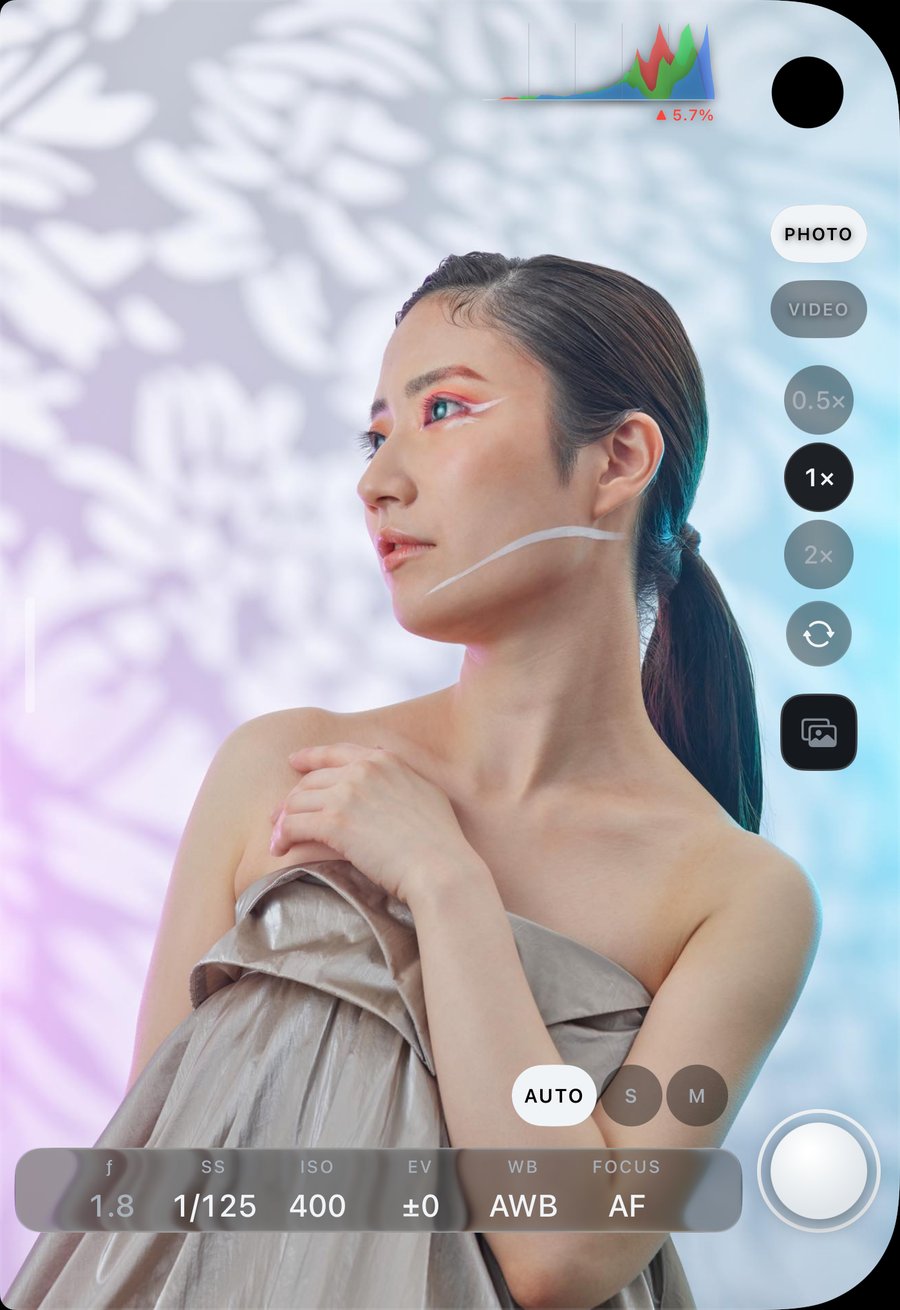
Half open on a table, you can look down into it and shoot the way you would with a waist-level finder. When the phone is open and held upright, the layout is the same as when it’s half open. Nothing moves when you go from half open to fully open. When the phone is open, the exposure meter is always on screen, even in AUTO.
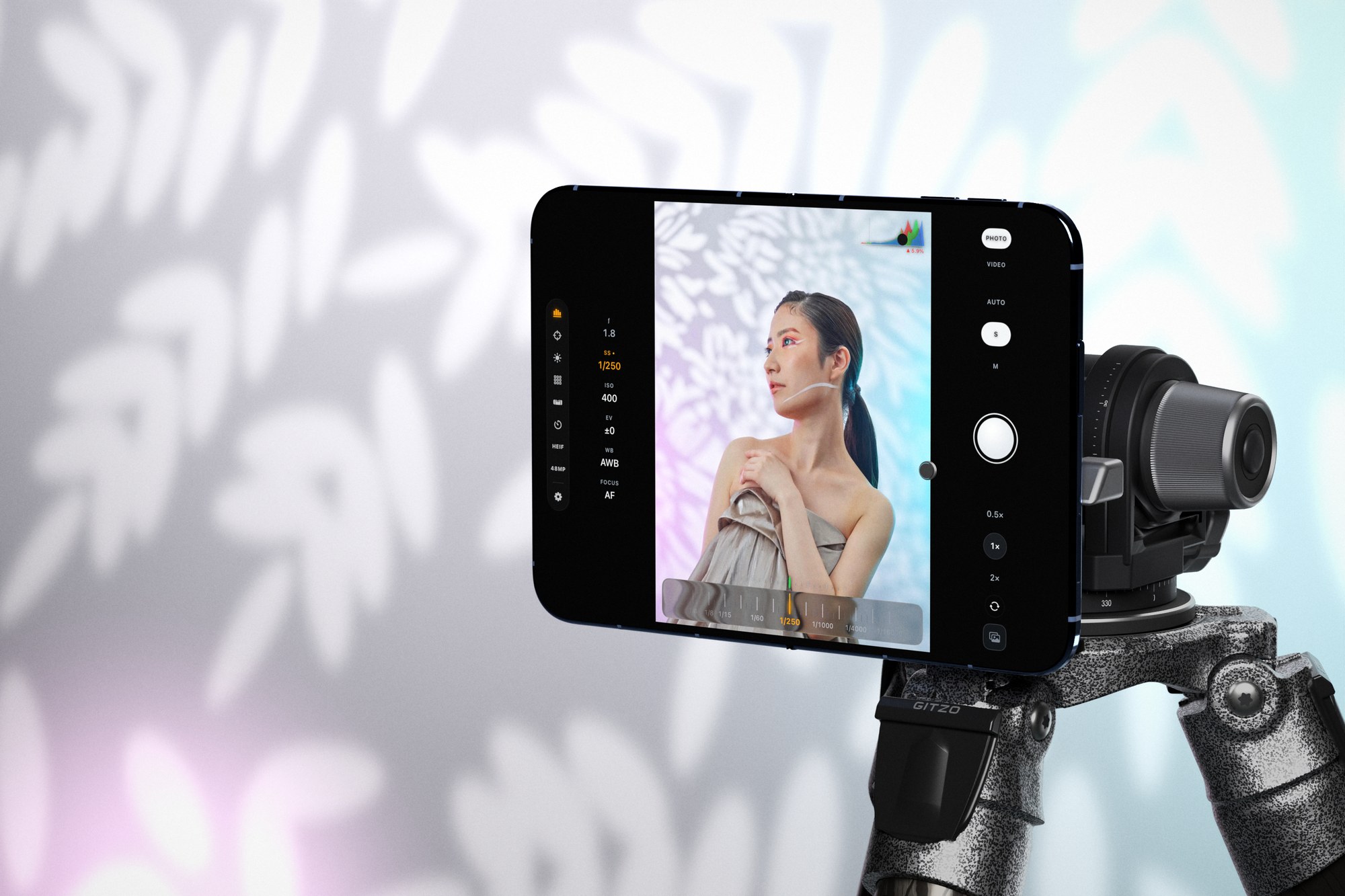
The shape that took the most work was open and flipped around. Here, both the back camera and the screen face you, and turning the phone 90° rotates the picture 180° on screen. If we locked the picture to one angle, it was always upside down one way or the other, held upright or held sideways. Version after version, we compared what the device’s screen showed with the logs, and settled on switching the angle depending on whether you hold the phone upright or sideways.
Don’t touch what already works. Limit each fix to the case that was reported.
Along the way, we also locked the angle for the closed phone, and the front camera’s picture, which had been fine, turned upside down. The line above is the note we wrote at the time. We put the closed state back right away.
Shoot while locked, and let your subject see themselves
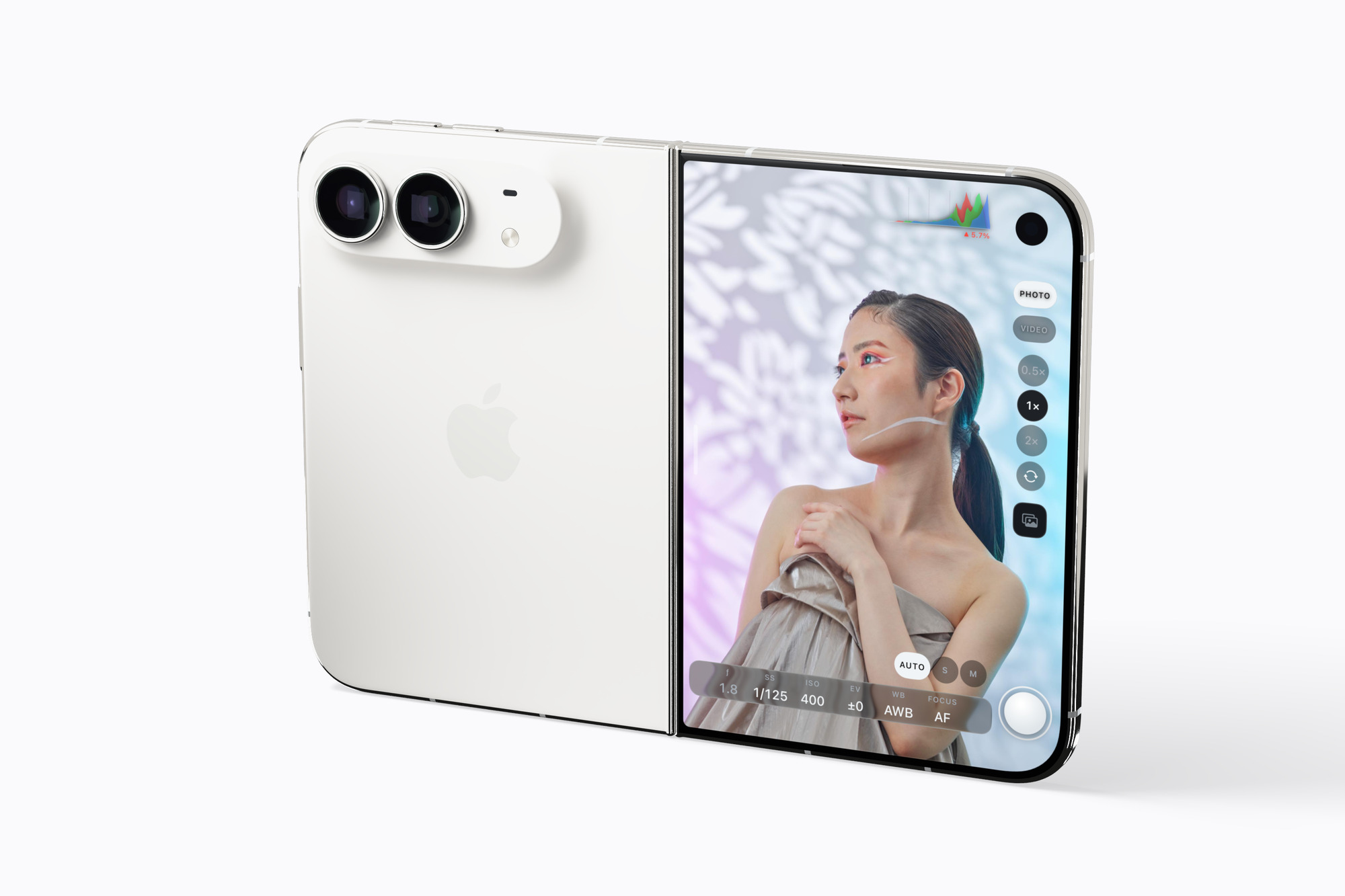
Choose ShotCamPro under Settings > Camera > Camera Control, and you can open it by pressing Camera Control while your iPhone is still locked. It opens on the same screen, with the lens, mode and values you used last.
While the phone is locked, iOS doesn’t let the full app launch. Earlier versions showed a simple camera when locked: one lens, auto exposure and a shutter button. That meant unlocking the phone before you could set the exposure and shoot. So we built the same screen as the full app into the camera that opens from the Lock Screen (the Lock Screen camera).
- You can review only the photos you took in that session.
- The Settings and Photos buttons open once you unlock the phone.
- The screen stays in portrait. The sideways layout for an open iPhone Duo is available after you unlock.
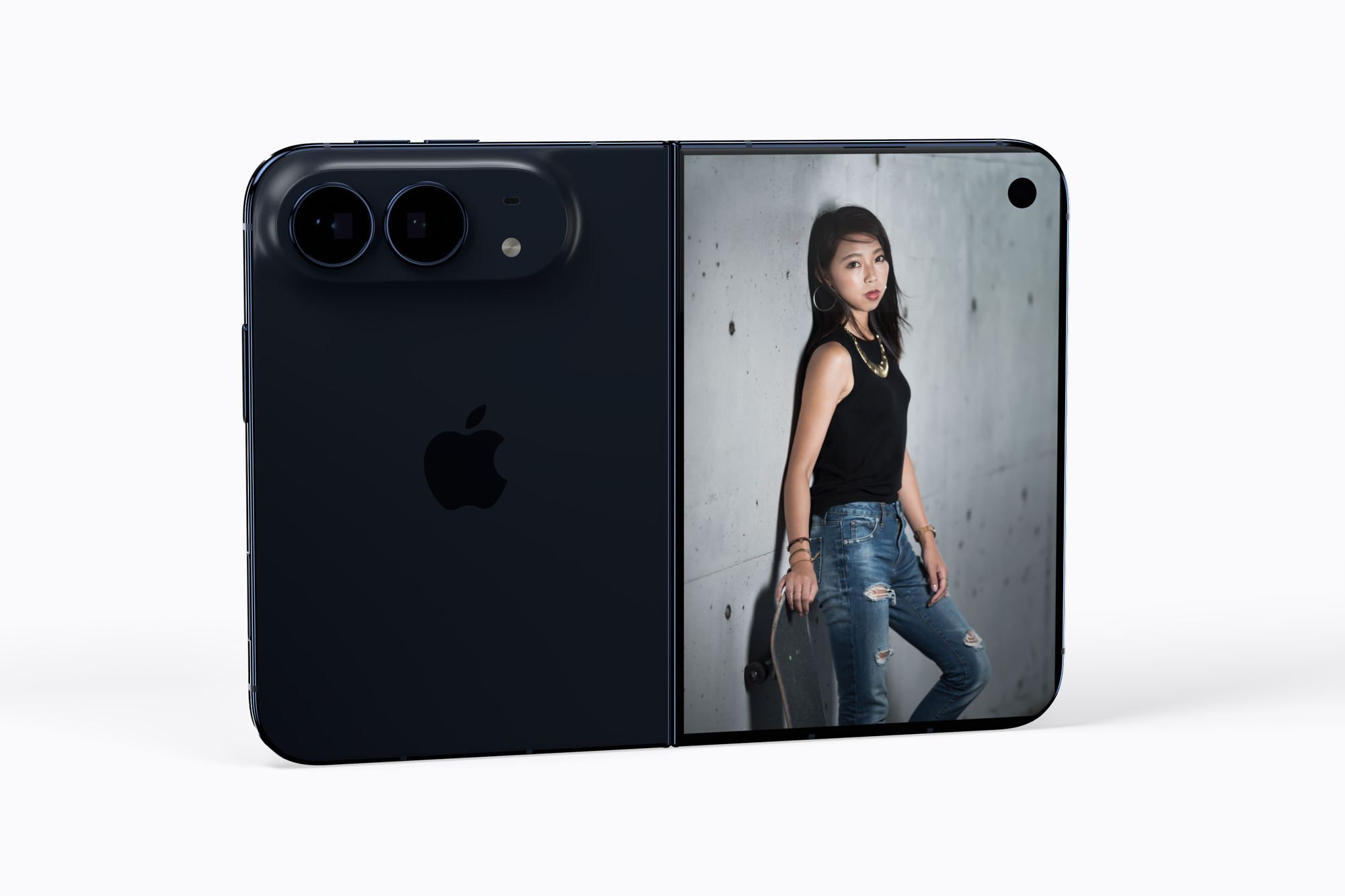
The other side of this is the person being photographed. When you open iPhone Duo and hold it up to shoot, the outer screen faces your subject, and ShotCamPro shows the live picture there. Your subject can see how they look and tap the screen to set focus. It’s on by default, and you can turn it off with “Show the picture when open” under “Outer Screen” in Settings.
What we decided for 2×, video and saving
iPhone Duo has two lenses, 0.5× and 1×. When we added 2×, the one rule we set was this:
“Do it in a way that loses as little image quality as possible.”
ShotCamPro has no zoom that stretches the image. 2× reads out the central quarter of the 48MP main sensor at the sensor’s native resolution, the same method Apple’s built-in Camera app uses for its 2×. Photos are saved at 12MP and are never upscaled to 48MP. The same goes for RAW. We also made Camera Control switch lenses rather than zoom.
Video has its own switch (PHOTO / VIDEO). AUTO, S and M are about how much of the exposure you control yourself, which is a separate question from whether you’re shooting stills or video.
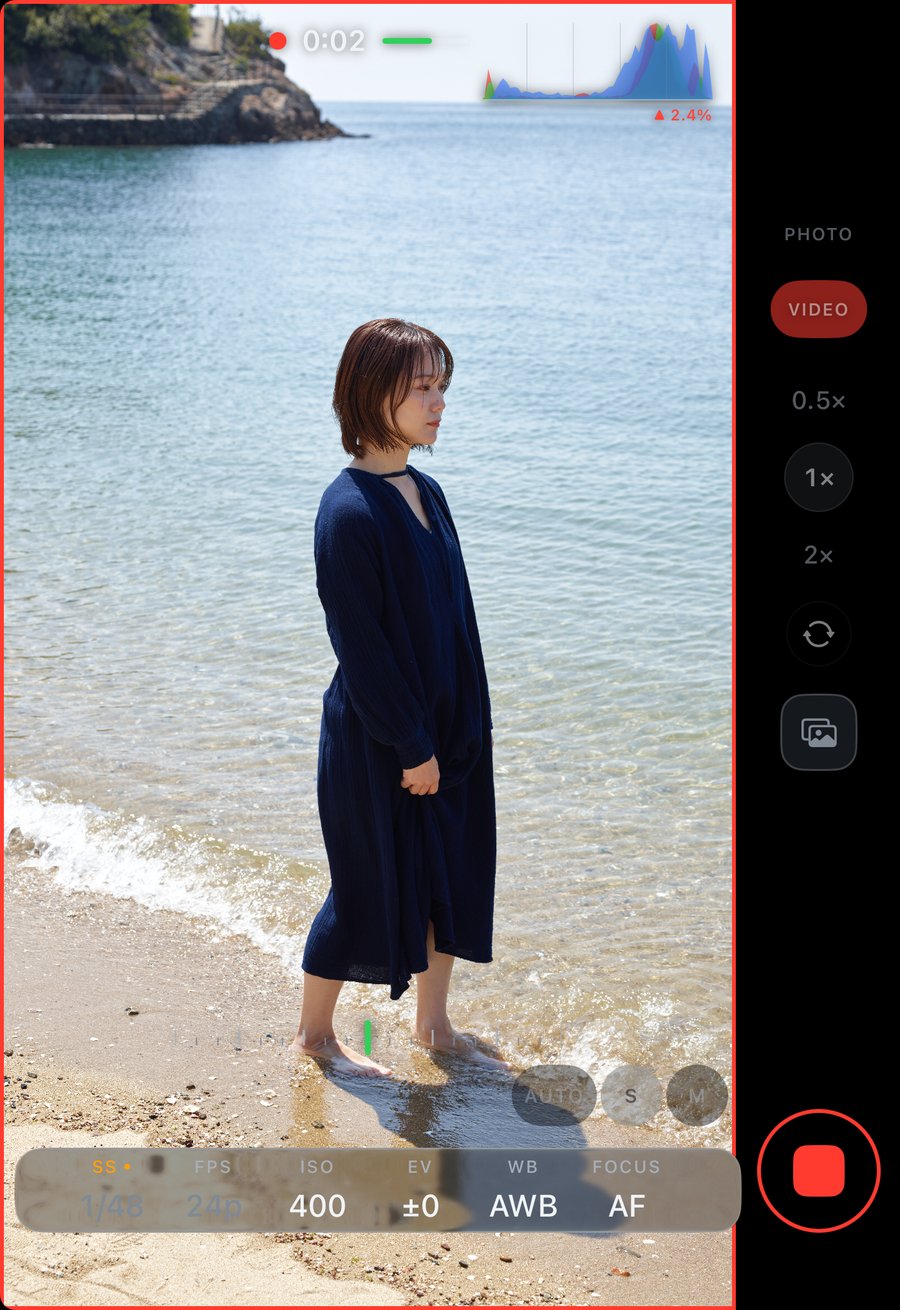
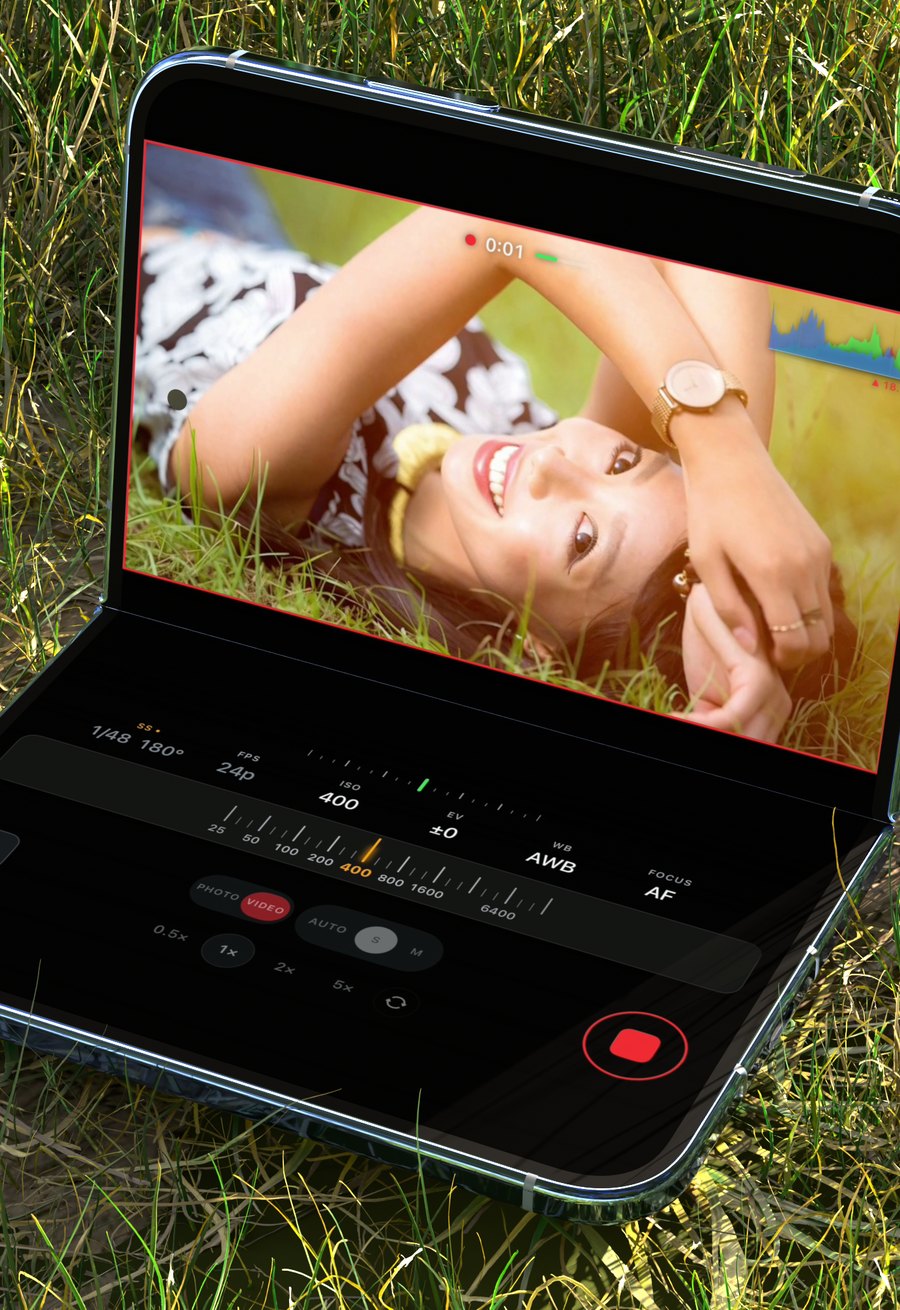
Video is recorded in 4K or 1080p at 24, 25, 30 or 60p, in HEVC. The dial is marked at 360°, 180°, 90° and 45°, and the shutter never goes slower than the frame rate.
Photos are saved straight to your photo library; the app doesn’t keep them to itself. You can shoot HEIF, RAW or RAW+HEIF, and Apple ProRAW on supported models. Right after you shoot, you can check the frame full screen on the spot and pinch to zoom in up to 4×.
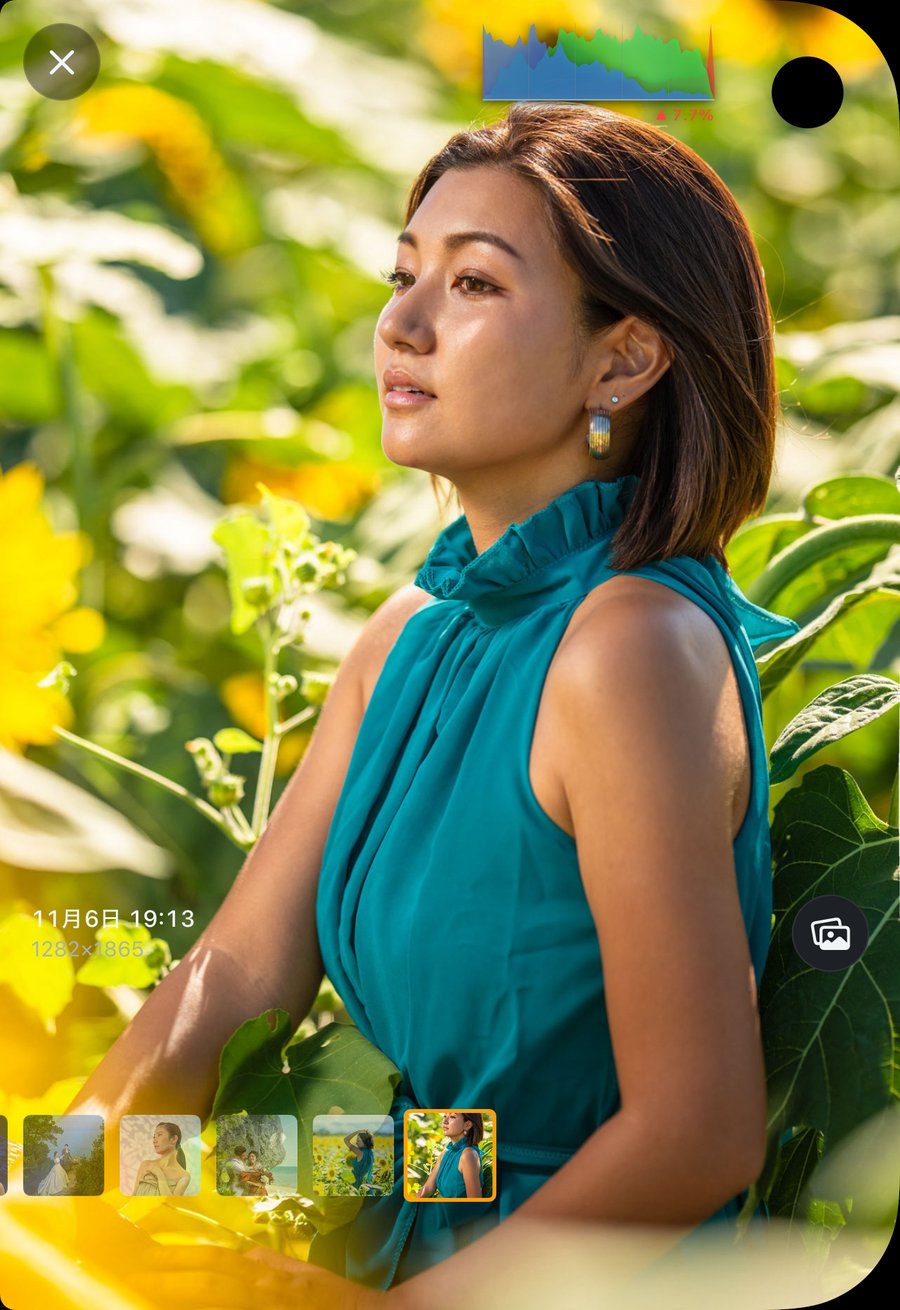
The shutter stays put while you choose a film
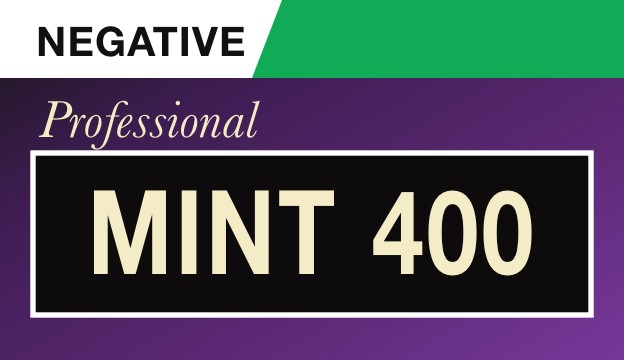
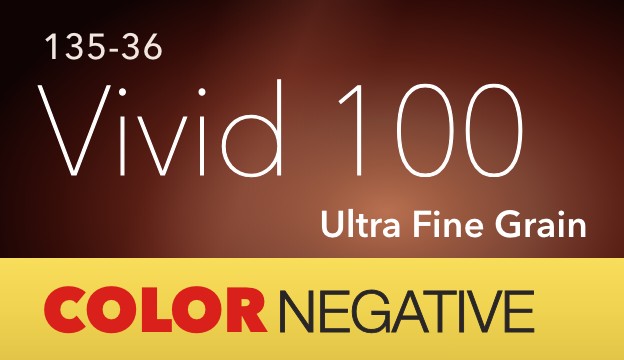
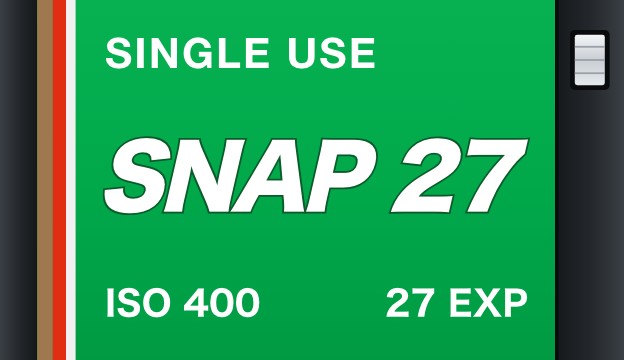
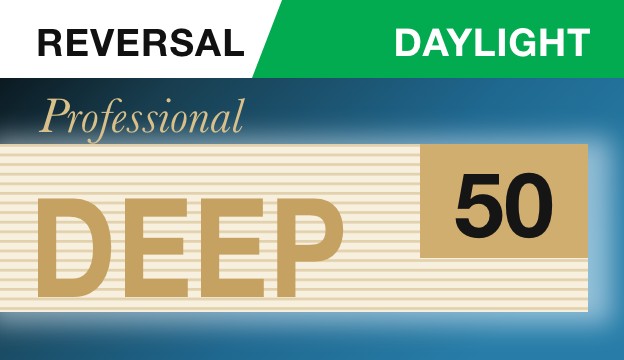
ShotCamPro has color filters, which the app calls “films.” There are 13 of them, including Soft Amber 400, Chrome Deep 50 and Mono Classic 400, the same set as in ShotTetherPro (page in Japanese). You can also import Lightroom presets.
Before building it, the question we settled wasn’t how many films to offer, but where you’d choose them.
Nothing goes on top of the photo. Only while you’re choosing a film do the controls outside the photo turn into a shelf of films.
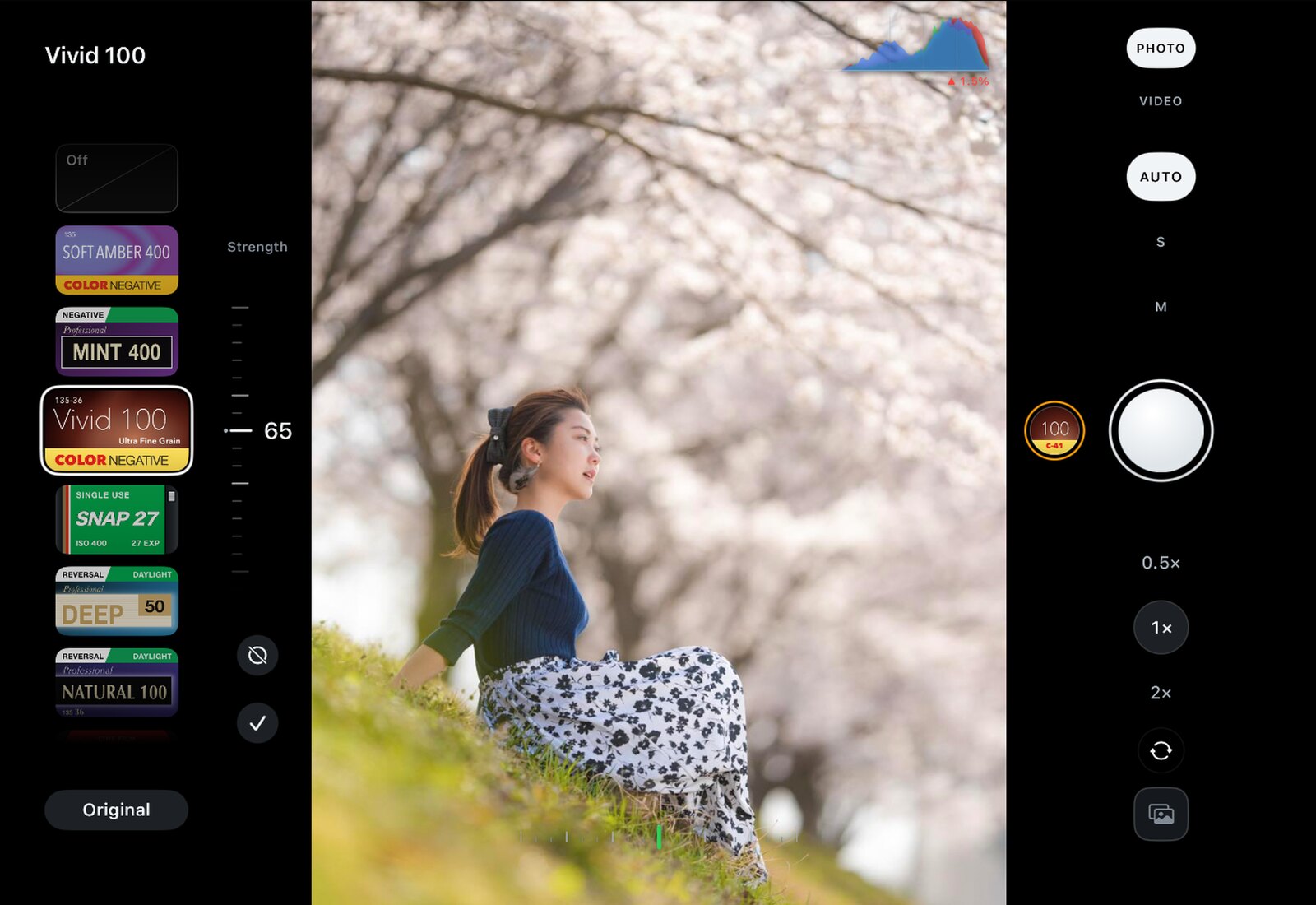
Tap the round badge beside the shutter, and film cards line up where the lenses and values were. The shutter doesn’t move, and you can keep shooting with the cards out. It’s the same rule as for values (select one and the dial appears), applied to films. The exception is a closed iPhone Duo: the picture fills the cover screen, so nothing can stay entirely off it. There, we decided the shelf would never take up more room than the strip where the values normally sit.
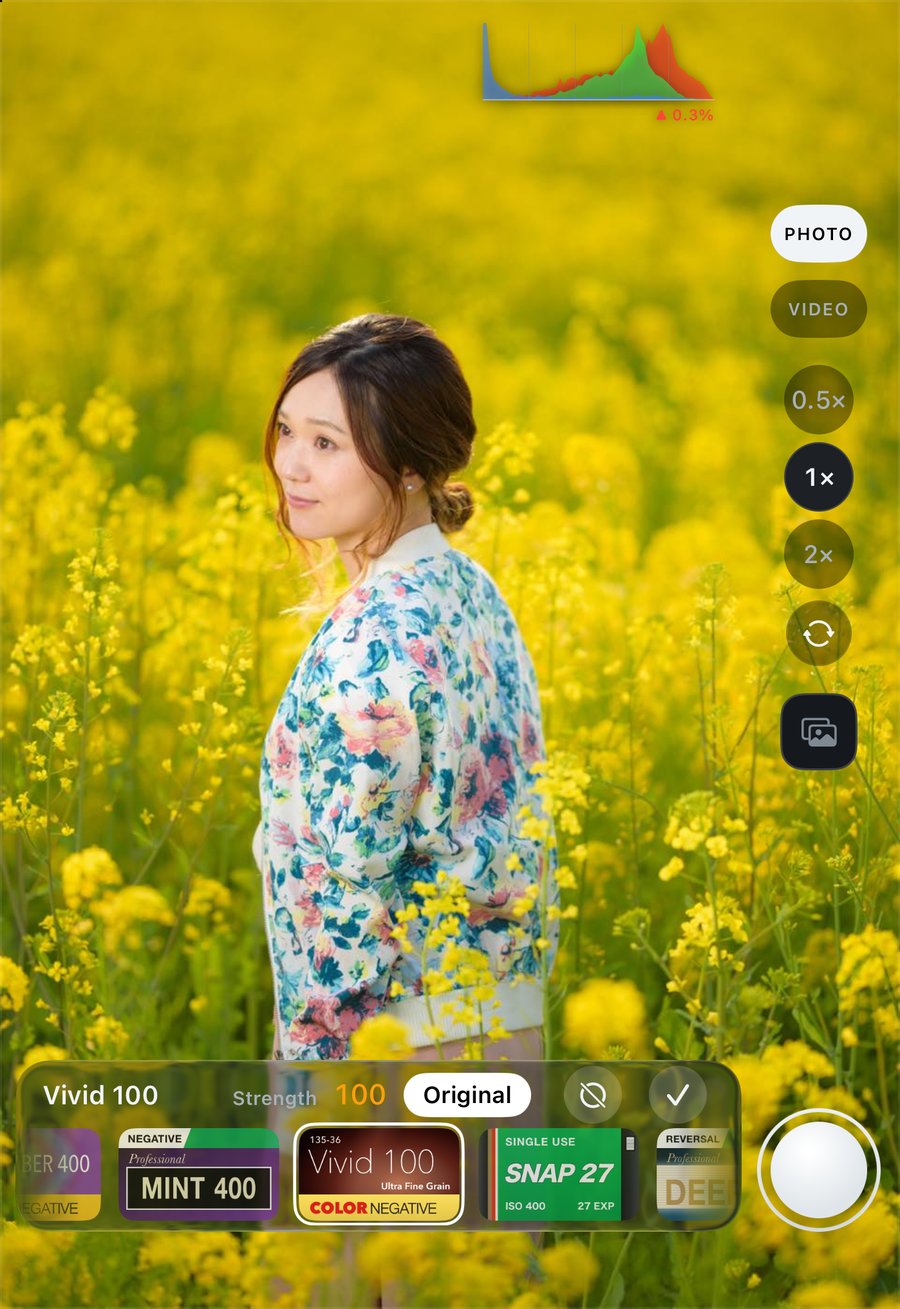
With the cards out, swipe sideways across the picture to move to the next film. Strength runs from 0 to 100, with 65 as the default; double-tap the strength to return it to 65. While you press and hold the picture (or the Original button), it shows the image without the film. That way you can compare the film’s colors with the original without lowering the camera.
For saving, we decided that RAW is never touched. For photos, the film is applied only to HEIF; RAW stays exactly as shot. If you shoot RAW+HEIF, only the HEIF gets the film. For video, nothing happens while you record; the film is applied after you stop. The original video isn’t deleted until the version with the film is in your photo library. Films apply to SDR and HLG video; video shot in Log and similar formats is left as shot. “Apply the preset to photos and videos” in Settings is on by default; turn it off to save everything as shot.
Films aren’t applied in the Lock Screen camera. The cards can’t be shown while locked, so applying a film there would mean saving photos without seeing what was applied. Your chosen film, its strength and any presets you’ve imported are shared with ShotTetherPro. Choose a film in one app, and the other uses the same one.
The film presets
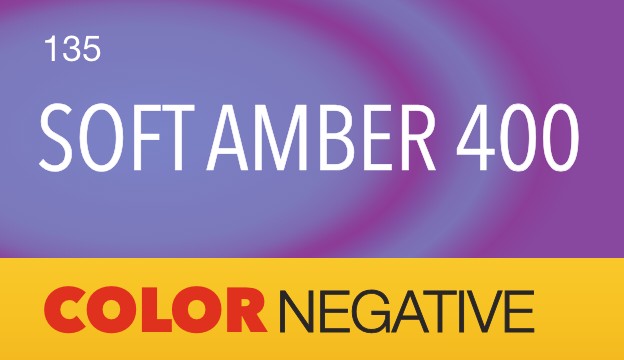
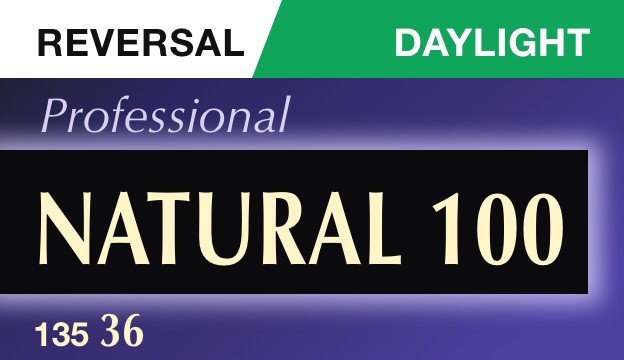
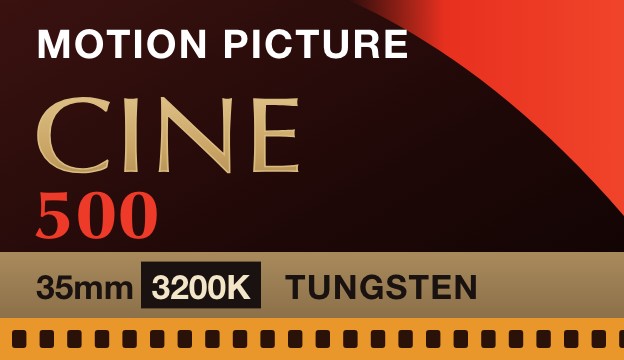
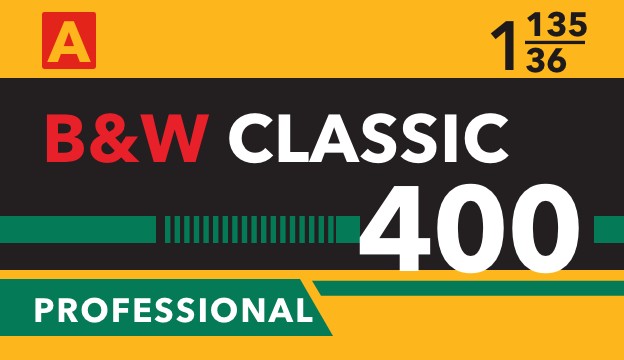
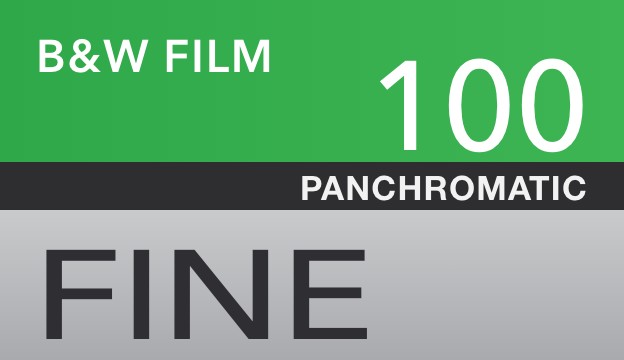
Each of the 13 films takes the color character of one real film stock or camera as its model. We built each one by setting values for color temperature, the tone curve, hue, saturation and luminance per color, shadow and highlight tints, grain and more.
Films are applied to photos the camera has already finished processing. So we kept contrast and saturation restrained, at roughly half of what a RAW preset would use, and the differences come mainly from hue, the shape of the tone curve, and the shadow and highlight tints. Medium Natural, Studio Crisp and Rangefinder are modeled on the color rendering of cameras rather than film stocks.
The card artwork, names and descriptions are exactly as they appear on the app’s shelf. The film names are our own, and ShotCamPro is not affiliated with any film or camera maker.


Shooting from the waist with the waist-level finder
Version 1.6 adds support for a waist-level finder. You hold iPhone Duo half open at waist height and look down at the screen on the flat half to shoot. It’s the way medium-format and twin-lens reflex cameras have long been held.
When we photograph people, we often hold the camera at waist level. With the camera away from our face, we can look the person in the eye and keep talking while we shoot. Partway through the conversation, when we sense their expression relax, we take the shot.
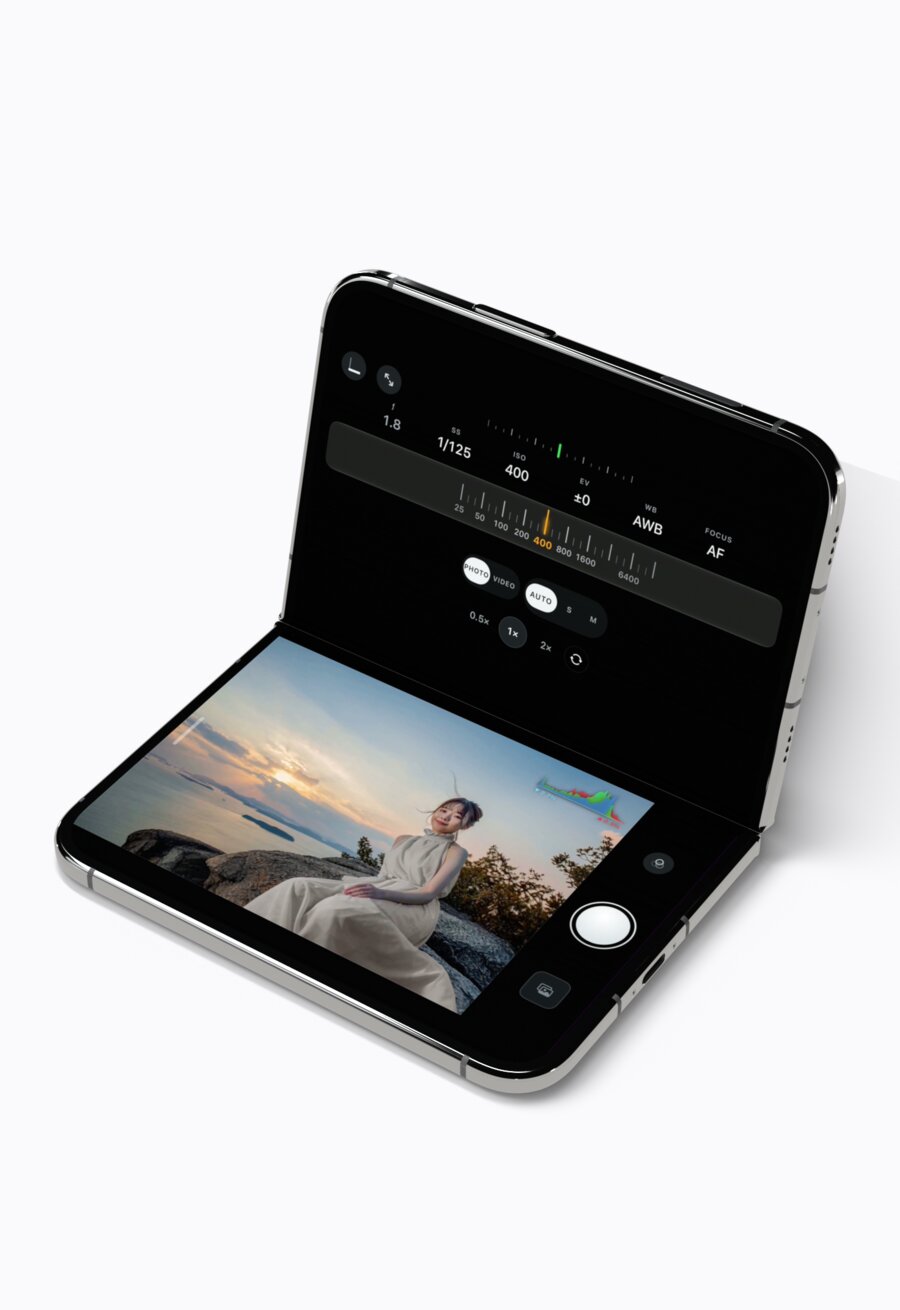
To use it, hold the phone half open and upright, and press the switch button to the left of the exposure meter. The picture moves to the flat half, and the readouts, dial, modes and lenses move up to the upright half. Along the right edge of the flat half, starting from the fold, the round film badge, the shutter and your last photo sit in a column, right where your right thumb reaches.
It doesn’t switch automatically. On a table or at waist height, the phone takes the same shape, with the camera side upright and the other side facing up, and only the person shooting knows whether they’re looking down into it. Your choice is remembered, so the next time you half open the phone, it starts in that layout. You can also choose “Flat half” for “Viewfinder when half open” under “Display” in Settings.
Press the button next to the switch button, and the flat half shows only the picture. Every control, the shutter included, moves to the upright half, and the flat half is picture from edge to edge.
With the picture only, a landscape-format photo shown at full width may not fit within the height of the flat half. You can choose how it’s shown with “Picture across the fold” in Settings: “Show as is” shows the whole frame, running across the fold, while “Cut at the fold” stops just short of the fold and shows the center. Either way, photos and videos are saved with their full field of view.
You can’t switch while recording; the recording finishes in the layout it started in. The waist-level finder works with the back camera while the phone is half open; open it all the way and the picture goes back to the top half. It works the same way in the Lock Screen camera.
Why a production company makes apps
The tool we wanted didn’t exist, so we made it as our own product and released it, hoping it would help others in our line of work as well. Like ShotTetherPro and ShotCheckPro (pages in Japanese), it is one of arcion Inc.’s own apps.
Summary
ShotCamPro is a one-time purchase, with no subscription and no ads. It makes no network connections at all.
- This article is the official page for ShotCamPro. We’ll add details of new versions here as they’re released.
- Bug reports and questions: https://arcion.jp/contacts (the form is in Japanese, but you’re welcome to write in English)
- Privacy policy: https://arcion.jp/shot-cam/privacy.html
FAQ